Apps come back from the Dead!
iOS 5 adds parallel download from the app store
Watch the WWDC 2011 Keynote here.
Watch the video
Automatic Download Option For Over-The-Air App Updates Coming To iOS 5
If you own an iOS device and have apps installed on it, you’re probably familiar with this page. You’re redirected to it whenever you select "Check For Updates" on the iTunes App section. As of a few hours ago, it had this bit of extra text
Currently, over-the-air updates are possible, although not automatically, requiring users to launch the App Store in order to get updates, which can be extremely time-consuming on slow networks. Automatic updating would make the update process essentially invisible to the user and still provide the same results. It’s unclear whether over-the-air updates would only apply to apps or to iOS itself as well, much like Android, Google’s competitor to Apple’s iOS.
While the reference to this feature has since been removed from iTunes, that didn’t happen before screenshots were all over Twitter, and later confirmed by credible people. There’s a very slight chance that we won’t see this announced next week, now that Apple openly disclosed it, although not intentionally.
This isn’t the first time that we’ve seen an Apple product being unveiled ahead of time by accident. In 2003, the specs of the then-unreleased PowerMac G5 were accidentally posted on the PowerMac G4′s page; and in 2006, references to iWeb, also rumored and unreleased at the time, were found on Apple’s support page. Both of those products were officially announced days later.
Last week, Apple confirmed it would be unveiling iOS 5, as well as Mac OS X Lion and iCloud, a new internet service at WWDC. While we don’t yet know any official details about those products, rumors of both iOS 5 and iCloud have been ongoing for months. It’s predicted that Apple’s new mobile operating system will include a new, less intrusive notification system, enhancements to multi-tasking and widgets, much like Google’s Android. Yesterday, we reported on a new artist’s mockup of what the new version of iOS should look like, based on the most popular rumors.
WWDC, Apple’s yearly developer conference, will kick off on June 6th. Although much of its focus will be to inform and train developers on the company’s newest software advancements, consumer products are often announced there as well.
Jailbreak iPhone 4.3.1 Untethered on Windows Using Sn0wbreeze 2.5 [How-To Tutorial]
For Mac users, we have already covered extensive tutorials on how to jailbreak iOS 4.3.1 using PwnageTool:
- How to Jailbreak iOS 4.3.1 on iPhone 4, 3GS, iPad, iPod touch (Untethered)
- How to Jailbreak iOS 4.3.1 on iPhone 4 (Tethered)
- How to Jailbreak iOS 4.3.1 on iPhone 3GS (New and Old Bootrom) (Tethered)
- How to Jailbreak iOS 4.3.1 on iPad (Tethered)
- How to Jailbreak iOS 4.3.1 on iPod touch 4G and 3G (Tethered)
NOTE: If your iPhone doesn’t rely on a carrier unlock, you can use Redsn0w for both Windows and Mac to easily jailbreak your device on iOS 4.3.1. Complete step by step instructions can be found here.
Step 1: First up, download all the required tools and files to your Windows desktop:
- Download and install iTunes 10.2.1 for Windows.
- Download Sn0wbreeze 2.5 for Windows.
- Download iOS 4.3.1 for iPhone, iPad or iPod touch.
Step 3: Select the required firmware .ipsw file for your iOS device by clicking on the “Browse” button.
Step 4: Sn0wbreeze will now identify the selected IPSW file. Once done, click the next “blue” colored arrow to proceed.
Step 5: Now select the “Expert Mode”, followed by “Build IPSW” option to start creating your custom firmware.
Note: If your iPhone relies on a unlock, proceed only by selecting “Baseband Preservation Mode” option instead of “Expert Mode”.
Since building custom firmware may take some time, you can optionally play Pac-Man game to kill some time.
Step 6: Sn0wbreeze will greet you with the following “Done!” message when the custom firmware has been successfully created.
Step 7: Now follow the onscreen steps to enter DFU mode using Sn0wbreeze:
- Hold Power and Home buttons for 10 seconds
- Now release the Power button but continue holding the Home button for 10 more seconds
- You device should now be in DFU mode
Step 8: Start iTunes, click on your iOS device icon from the sidebar in iTunes. Now press and hold Left “Shift” button on the keyboard and then click on “Restore” (Not “Update” or “Check for Update”) button in iTunes and then release this button.
This will make iTunes prompt you to select the location for your custom firmware 4.3.1 file. Select the required custom .ipsw file that you created above, and click on “Open”.
Step 9: Now sit back and enjoy as iTunes does the rest for you. This will involve a series of automated steps. Be patient at this stage and don’t do anything silly. Just wait while iTunes installs the new firmware 4.3.1 on your iOS device. Your iOS device screen at this point will be showing a progress bar indicating installation progress. After the installation is done, your iOS device will be jailbroken on iOS 4.3.1.
How-To Unlock iOS 4.3.1:
Ultrasn0w 1.2 is broken on iOS 4.3.1. Wait for the Dev-Team to push new version of Ultrasn0w to unlock your iPhone (compatible basebands: 01.59.00 / 04.26.08 / 05.11.07 / 05.12.01 / 05.13.04 / 06.15.00).
Confirmed: Gevey SIM Can Also Unlock iPhone 4 On iOS 4.3, Baseband 04.10.01
In case you don’t already know, Gevey SIM for iPhone 4 basically works by forcing the activation of the baseband using the emergency dialer. You can read more about how it actually works by navigating to this link here.
So should you get it now? Well if you are tired of waiting for software-based unlock, and you don’t mind spending a few extra $, then you can get this mod to unlock your iPhone 4. However we at Redmond Pie wont recommend it due to its current legal status. MuscleNerd and Co. are still working on an Ultrasn0w (free software based) unlock solution. We suggest to wait for the 40-bit NCK hack for iPhone 4 by the iPhone Dev-Team.
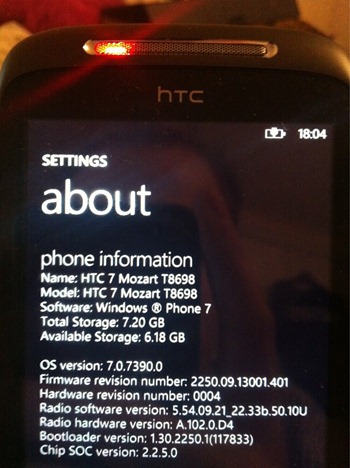
Windows Phone 7.0.7390.0 “NoDo” Update Now Available for Download
Full change log of Windows Phone 7 Build 7.0.7390.0 March 2011 update is as follows:
March 2011
OS version: 7.0.7390.0
Copy & paste. You asked for it—now it’s here. Just tap a word and drag the arrows to copy and paste it on your phone. You can copy text from emails, text messages, web pages, and Office Mobile documents, and paste it anywhere you can type. To learn more, see Copy & paste.
Faster apps and games. Nobody likes to wait. That’s why we’ve whittled down the time it takes for apps and games to start up and resume. It’s all part of our focus on getting you to the things you love, easier and faster.
Better Marketplace search. We’ve streamlined Marketplace search to make it easier to find specific apps, games, or music. Press the Search button in the Apps or Games section of Marketplace and you’ll see only apps or games in the results. Press Search in the Music section of Marketplace to search just the music catalog.
Other Marketplace improvements. We’ve improved the stability of Marketplace while you download apps. We’ve also improved the experience of downloading apps larger than 20 megabytes, upgrading from trial apps to paid apps, using a credit card with an address outside the United States, sharing links to apps via email, sorting Xbox LIVE games by release date, and creating an Xbox LIVE account from within the Games Hub.
Wi-Fi improvements. We now display your phone’s Media Access Control (MAC) address in Settings. (You might need this info if you try to connect to a Wi-Fi network that uses MAC address filtering. To learn more, see Connect to a Wi-Fi network.) We’ve also removed the limit on the number of Wi-Fi profiles that you can store and reduced the time it takes to start your phone if you’ve stored lots of Wi-Fi profiles.
Outlook improvements. We’ve improved the experience of viewing iPhone photo attachments you receive from a non-Exchange-based emailaccount (such as a Google Mail, Hotmail, or Yahoo! Mail account), using the Global Address List (GAL) when connecting to Exchange Server 2003 using Exchange ActiveSync, and working with email display names that contain brackets (for example, "David Alexander [Contoso]").
Messaging improvements. We’ve improved the experience of receiving Multimedia Messaging Service (MMS) messages if your phone uses a PIN-locked SIM.
Facebook integration. We’ve improved the experience of syncing Facebook accounts.
Camera improvements. We’ve improved the stability of switching between camera and video modes.
Audio improvements. We’ve improved the experience of using a Bluetooth headset to make calls when you’re playing music or videos.
Other performance improvements. This month’s update also includessoftware from several phone manufacturers that improves the performance of specific models. Naturally, if you don’t have one of the affected models, we won’t install this portion of the update on your phone.
In order to update your Windows Phone, you will need to connect it to your PC or Mac via USB cable, start Zune for Windows or the Windows Phone 7 Connector for Mac, depending on the kind of computer you have, and then simply follow the onscreen instructions to update your phone.
NOTE: This update of Windows Phone 7 blocks ChevronWP7 jailbreak tool for sideloading/installinghomebrew apps.


